
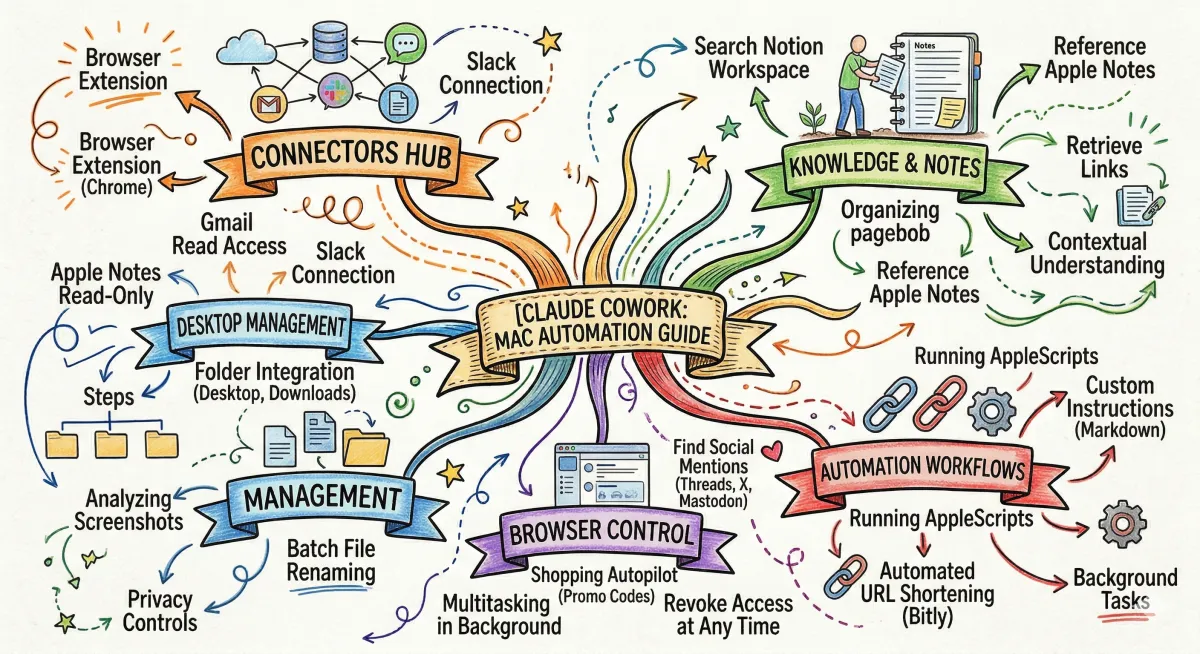
Claude Cowork: Your Mac's New Superpower
Meet Your New Digital Intern: How I Let Claude Run My Mac (And Why You Should Too)
I’ve always said that technology shouldn’t feel like a locked door; it should feel like a set of Legos. You just need to know which pieces click together. Recently, I’ve been tinkering with something that feels less like a "tool" and more like a digital intern: Claude Cowork.
If you’ve ever felt like your computer is a messy desk you can’t quite organize, this one is for you. Based on a fantastic breakdown by creator Jason Robles, I’ve been putting Claude to the test on my own Mac. Here’s the lowdown on how this "AI pioneer" is actually making my life easier without me having to write a single line of code.
1. The "Marie Kondo" of File Management
We’ve all been there: a Desktop cluttered with files named Screenshot 2024-05-12 at 10.42.PM.png or IMG_8492.mp4. It’s a graveyard of data.
With Claude Cowork, I pointed it at my Downloads folder and simply said, "Rename these based on what’s actually in them." It didn't just look at the metadata; it looked at the frames of my videos and the text in my screenshots. Suddenly, IMG_8492 became B-roll_Drone_Shot_Mountain.mp4. It’s like magic, but it’s just Claude doing the heavy lifting.
2. Connecting Your "Second Brain"
I keep my life scattered across Apple Notes, Notion, and Slack. Usually, finding a specific detail feels like a digital scavenger hunt.
Claude Cowork acts as a "Universal Key." By connecting these apps (or "connectors"), I can ask Claude: "Hey, what were those five project ideas I jotted down in Apple Notes last Tuesday?" or "Summarize the last few messages in the #marketing Slack channel." It searches across all my platforms and gives me the answer in seconds.
3. The Browser Autopilot
This is where it gets really "tinkery." Using the Claude extension in Chrome, I can literally watch the AI browse for me.
The coolest use case? Promo codes. If you’re at a checkout page on a site like Overstock, you can tell Claude to find and test discount codes for you. It’ll open tabs, try codes, and report back which one saved you the most cash while you’re off grabbing a coffee.
The "Tinkerer’s Hurdle": Node.js
Now, full disclosure: to get the most out of these "connectors," you might need to install something called Node.js. I know, it sounds like "computer science" stuff, but think of it like installing a driver for a printer.
You just open your Terminal (that scary black box in your Applications folder), paste a couple of lines of text (which Claude will give you), and hit Enter. Once you see a version number pop up, you’re in the club. You didn't "code"—you just set the stage for the AI to perform.
Is It Safe?
I’m a big believer in privacy. The beauty of the Mac app is that you have total control. You decide which folders Claude can see. If you’re done with a project, you can go into your System Settings > Privacy & Security and revoke that access instantly. You’re always the boss.
Tinkering Tip:
Don't try to automate your whole life in one day. Start small! Give Claude access to just your Desktop and ask it to "Organize these files into folders by category (Work, Personal, Photos)." Watching it move your files around for the first time is a total "lightbulb" moment.
Credit for the deep dive on these features goes to Jason Robles. Check out his full demonstration for the nitty-gritty details!