
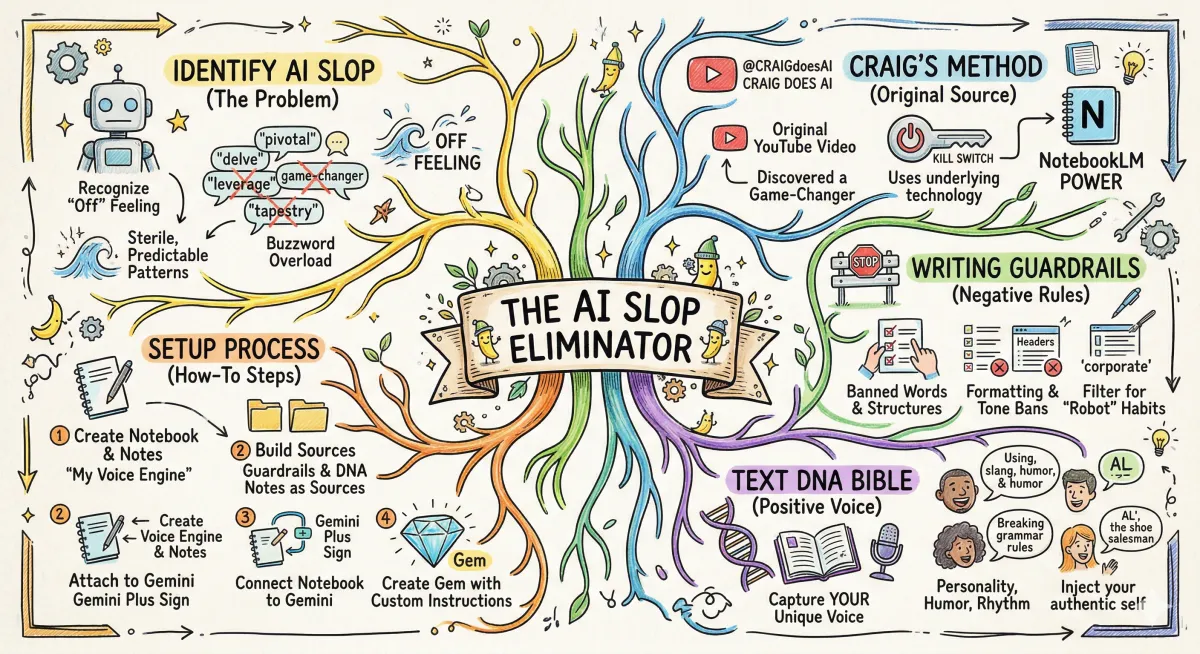
The AI Slop Eliminator: How to Scrub the "Robot" Out of Your Writing
We’ve all seen it. You’re reading an email, a LinkedIn post, or a blog, and something just feels... off. It’s too polished, too polite, and filled with words like "tapestry," "delve," and "pivotal."
It’s what we call AI Slop.
As a tinkerer, I’m always looking for ways to make these tools work better for us "regular" people. I recently stumbled across a game-changing method on YouTube from a creator named Craig Does AI (@CraigdoesAI). In his video, "The AI Writing Kill Switch," Craig figured out a way to use the underlying power of NotebookLM to essentially "kill" the AI fingerprint and replace it with your actual human voice.
I’ve implemented his system myself, and the results are night and day. I wanted to share exactly how I set it up so you can do the same.
The Discovery: Craig’s Two-File System
The core of what Craig teaches is that you can’t just "prompt" your way out of AI sounding like a robot. You need a system. He uses a two-file setup that acts as a filter for everything the AI generates.
The Writing Guardrails: A list of every "bad habit" the AI has (banned words, predictable structures, and annoying formatting).
The Text DNA Bible: A guide that tells the AI exactly how you talk—your humor, your rhythm, and your unique perspective.
Here is the how-to guide for setting up your own AI Slop Eliminator.
Step-by-Step: Setting Up Your Slop Eliminator
1. The NotebookLM Foundation
First, head over to NotebookLM. This is Google’s research tool, and it’s the secret weapon here because it allows the AI to "ground" its personality in the files you provide.
Create a New Notebook: Call it something like "My Voice Engine" or "Slop Eliminator."
Create Your Sources: You’re going to create two specific notes within this notebook.
2. Build Your "Guardrails" Note
In your notebook, create a new note called "Writing Guardrails." Based on Craig’s method, this should include:
Banned Words: List all the words that trigger your "robot" alarm (e.g., leverage, comprehensive, game-changer).
Formatting Rules: Tell it to avoid those numbered lists that AI loves so much.
Tone Bans: Tell it never to be "overly enthusiastic" or "corporate-polite."
3. Build Your "Text DNA" Note
Create a second note called "Text DNA Bible." This is where you put the "human" back in.
Your Style: Describe how you talk. Do you use short sentences? Do you use slang?
Your Samples: Paste in 3–5 examples of things you’ve actually written (emails, texts, or posts) so the AI can "hear" you.
4. Connect to Gemini (The "Gem" Setup)
Now, take those sources and plug them into Google Gemini.
In Gemini, click the Plus (+) button and attach the NotebookLM you just created.
Create a Custom Gem: This is a custom version of Gemini that stays locked into your rules.
The Instructions: Tell the Gem: "Your job is to write content for me. You must strictly obey the 'Writing Guardrails' to eliminate AI slop and use the 'Text DNA Bible' to mimic my specific voice."
The Result: Why It Works
When I tried Craig’s method, the difference was instant. Without these files, the AI sounds like a textbook. With them, it sounds like me—just a version of me that doesn't have writer's block.
I’m really grateful to Craig Does AI for sharing this workflow. It’s a perfect example of how tinkering with these tools can help us stay human in a world of automated content.
🛠️ David’s Tinkering Tip
When you're building your "Text DNA Bible," don't try to sound smart. Just be you. If you usually start your emails with "Hey everyone," put that in there. The more "imperfect" your DNA file is, the more "human" the final result will feel.
Check out Craig’s full breakdown on YouTube here: The AI Writing Kill Switch. He’s doing some incredible work showing us how to keep our digital identity intact.
Have you noticed the "AI fingerprint" in your own work lately? Drop a comment and tell me which AI-isms drive you the most crazy!